Downloads - PC
Feature Overview
The “Download Center” is an efficient and practical download management tool that supports multiple protocols and download methods, helping users conveniently manage all types of file download tasks. Whether it’s movies, music, documents, or large files, the Download Center enables automated downloads and centralized management. The Download Center offers the following features:
● Comprehensive integration of download methods: Supports various download methods such as Torrent, magnet links, HTTP, and FTP, allowing users to download files, videos, music, and other types of resources. It integrates PT (Private Tracker) download functionality and supports resource management rules for private trackers; after downloading, users can continue uploading to seed files, thereby maintaining resource stability.
● Simultaneous multi-task downloading: Allows users to download multiple files at the same time, efficiently utilizing the NAS’s storage and network resources to improve download efficiency.
●** Remote management**: Enables users to remotely add and manage download tasks via a mobile app, allowing them to operate anytime, anywhere, without restrictions on time or location.
Download Center Feature Overview
●** Multi-protocol Support**: Supports multiple protocols, including Torrent, Magnet, HTTP, and FTP.
● Task Management: Supports batch adding, pausing, resuming, and deleting download tasks.
● Speed Limits: Supports setting global download and upload speed limits for tasks.
● Torrent File Management: Import .torrent files to download torrent resources directly.
● Magnet Link Recognition: Automatically parses magnet links and displays available resources.
● Task Categorization: Download tasks are organized and managed by status (in progress, downloaded).
Explanation of Download Center Settings
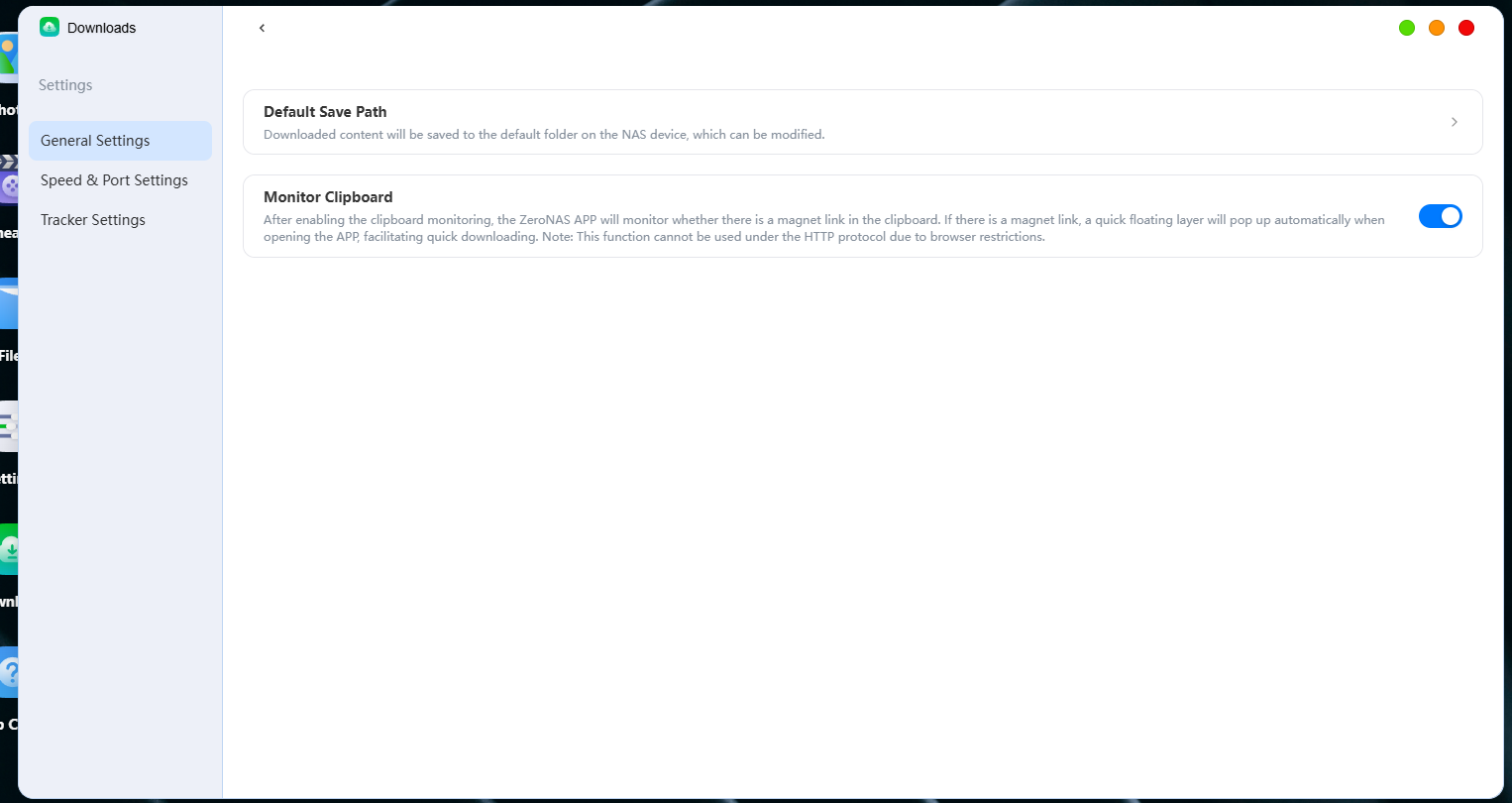
●** Default Save Path**: Configure the default save location for all completed download tasks.
● Monitor Clipboard: When this feature is enabled, the Tieniu app will monitor the clipboard for magnet links. If a magnet link is detected, a quick-access overlay will automatically pop up when you open the app, allowing for quick downloads. Note: This feature cannot be used with the HTTP protocol due to browser restrictions.
● Seeding Limits: Set seeding conditions (such as upload duration and ratio) to automatically control when a task stops seeding.
● BT/PT Download Speed Limits: Set maximum download speeds for BT and PT tasks, with support for time-based speed limit configurations.
● BT/PT Upload Speed Limiting: Set maximum upload speeds for BT and PT tasks; this feature also supports time-based speed limits.
● Tracker Server Configuration: Add or edit the list of trackers used for BT/PT downloads to improve the efficiency of torrent discovery.
Create a Download Task
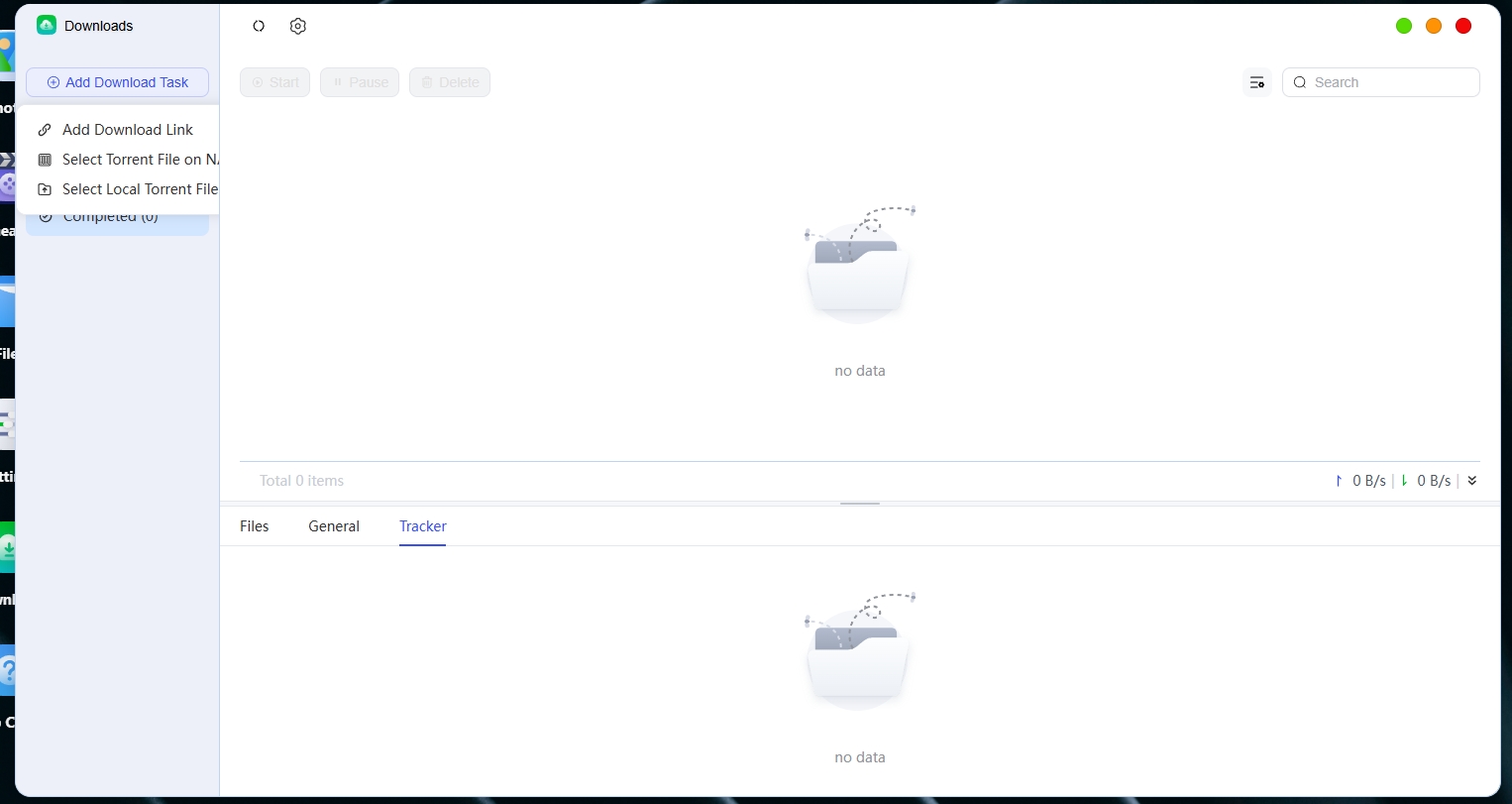
1. Open the “Download Center” app and click the “Add Download Task” button in the upper-left corner. You can add tasks in the following two ways:
●** Add a download link**: Enter or paste a link. You can paste multiple links at once to create multiple download tasks (supports HTTP, HTTPS, FTP, magnet links, etc.)
●** Select a .torrent file from your NAS or computer**: Choose a .torrent file from your NAS or computer to create a download task.
- After making your selection, set the download save path, then click “OK” to start the download.
Manage Download Tasks
● Start/Pause/Delete a Task: Select the task, then click the “Start/Pause/Delete” button.

● View task details: Click the task name to view progress, connection status, download path, and more.
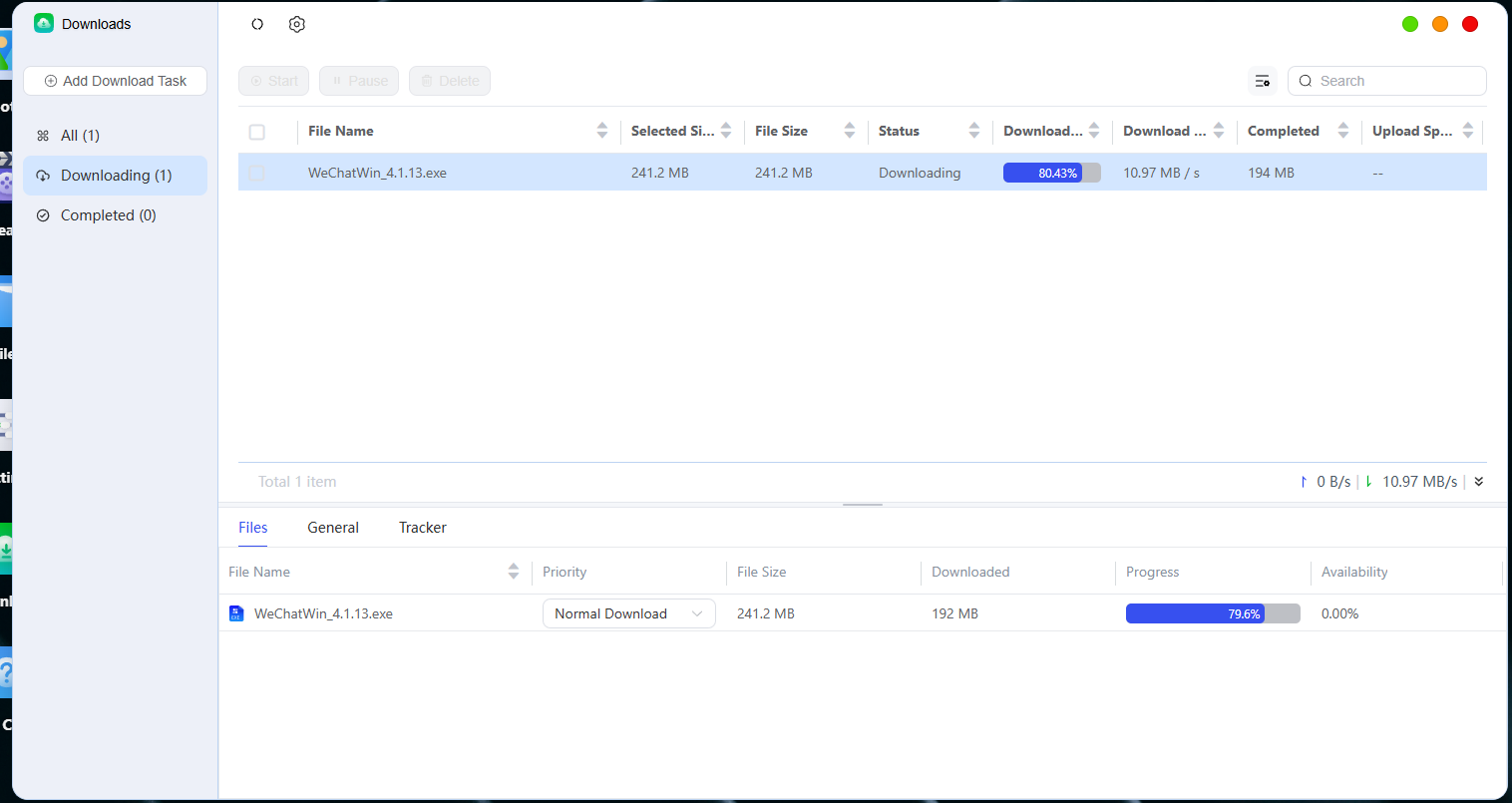
● Batch Operations: Supports selecting multiple tasks for unified management.
Managing Seeding Tasks
Once a BT/PT download task is complete, the system will automatically enter seeding mode. You can flexibly manage seeding tasks in the following ways:
Manage a Single Seeding Task
-
Open the "Downloads" page and locate the download task you want.
-
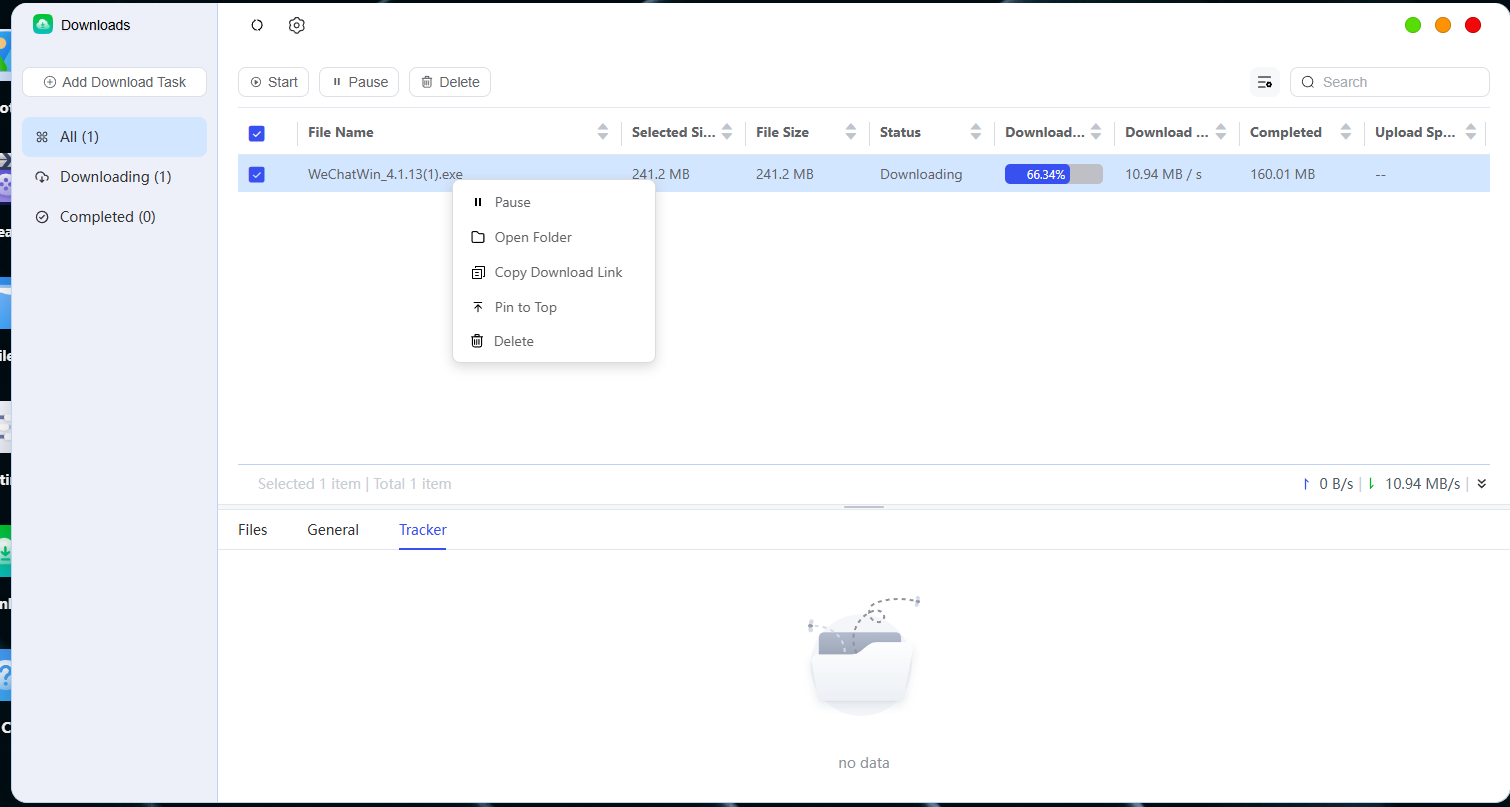
Additional right-click options include:
●** Copy download link**: Makes it easy to share the resource with others.
● Open in File Manager: Quickly navigate to the directory where the file is located.
●** Pause or Delete**: Free up system resources as needed.
●** Export Torrent**: Clicking this will download the torrent file.
● Pin to Top: Clicking this moves the item to the top of the list.
Viewing and Searching for Seeding Tasks
● View: In the "Downloaded" list, you can view the details of each download task, including its current status (Queued/Paused/Not Seeding/Seeding), file size, upload progress, and more.
● Search: Use the search bar at the top to quickly find specific tasks or filenames that match your search terms.
Note: Deleting a seeding or download task will not delete the files that have already been downloaded.